
Creating New Users
User Management and actions like Creating New Users are only available to Admin usersIf you require access to User Management, please contact your Admin user. If you are unsure who your Admin user is, please contact our Client Services team via [email protected].
Creating new users can be managed from the User Management section in the Deko Dashboard.
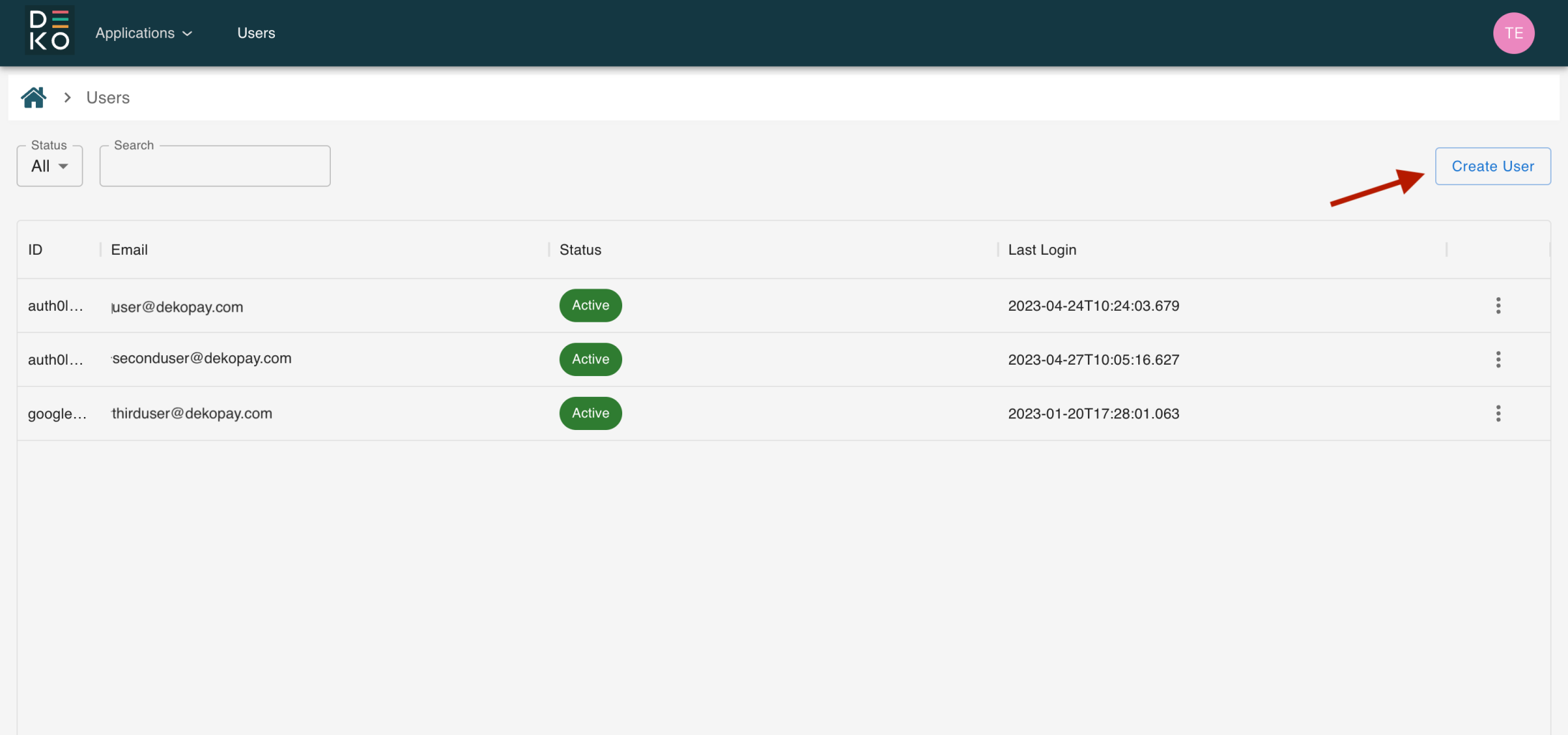
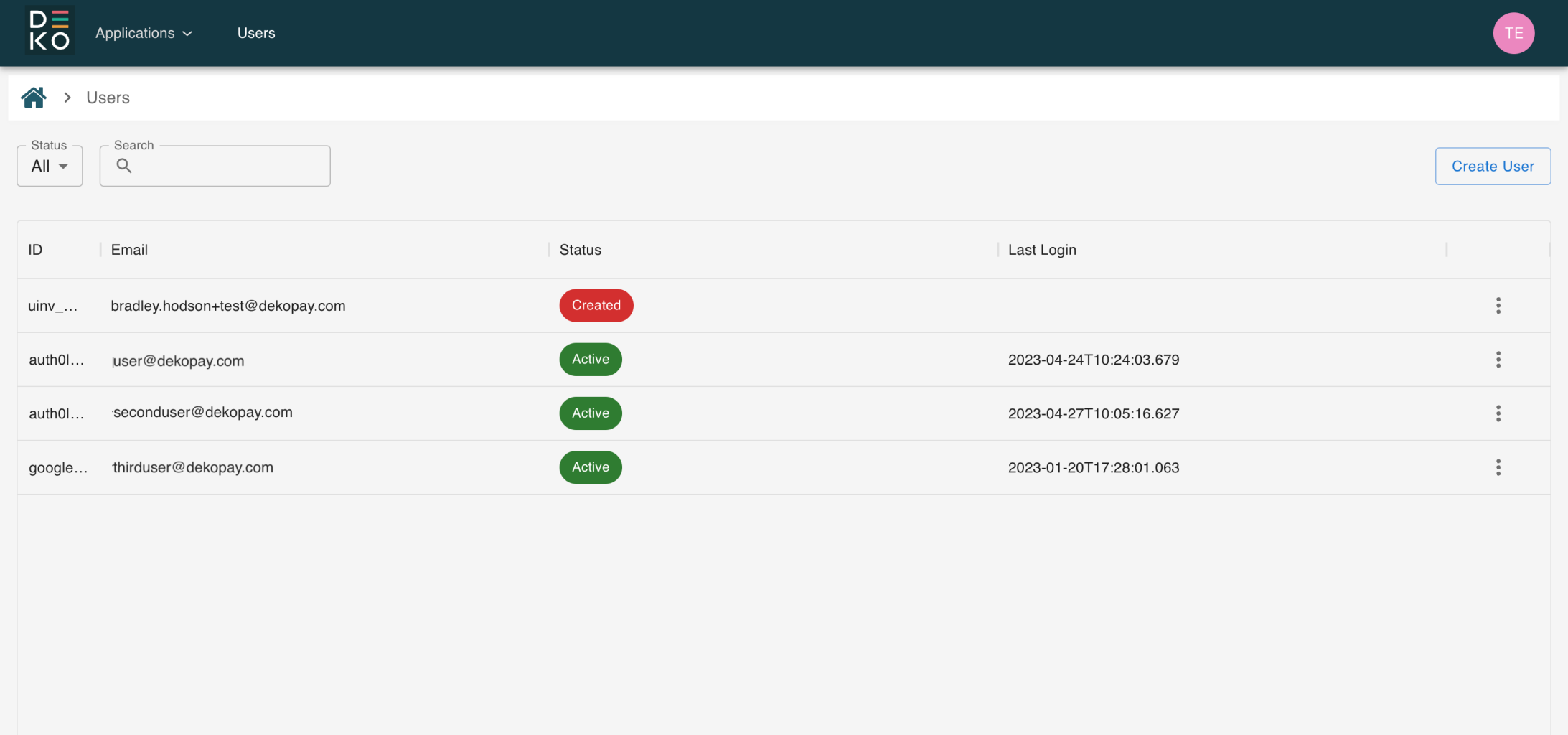
To create a new user, you will need to first click the Create User button, available on the top right of the page.
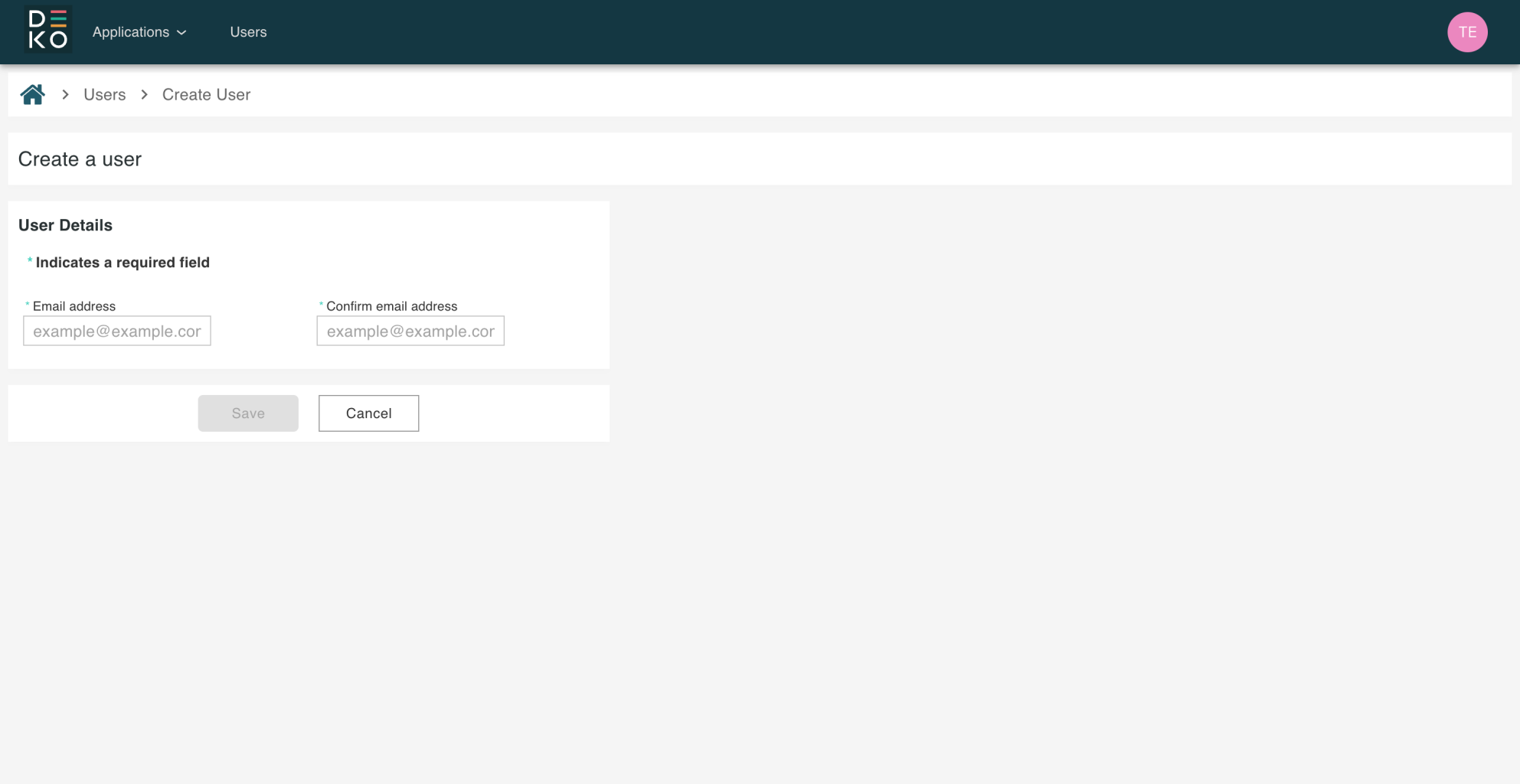
When the Create a user screen is displayed, you will need to provide and confirm a valid user email address for the user which you would like to create.
Any newly created user will be created for your account and organisation.
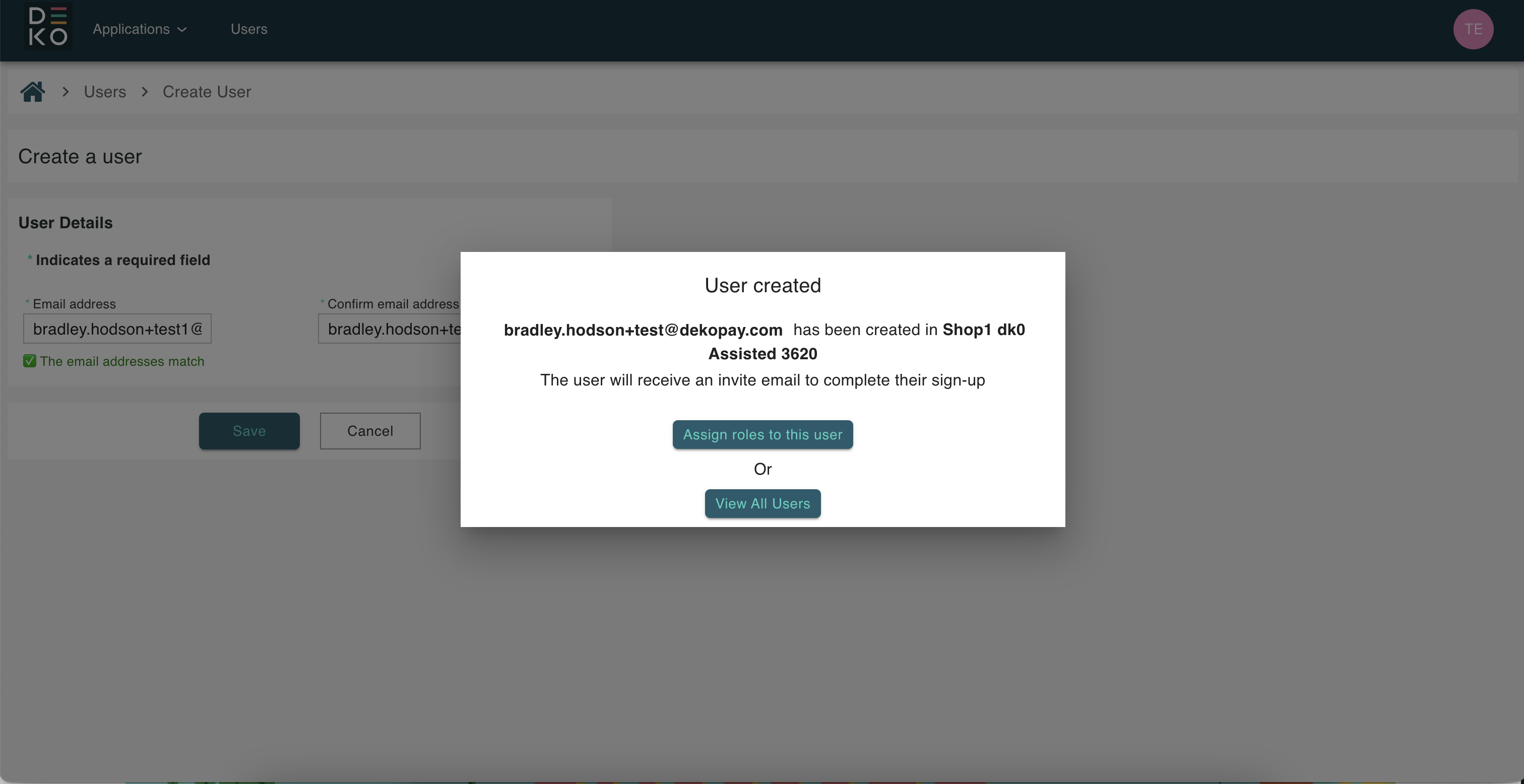
Once the relevant information has been provided and the Save button is clicked, a pop-up will be displayed to inform you that the new user has been created. From here you will be returned back to the User Management section. Alternatively, you can also jump straight to assign a role to the created user, ensuring they have the correct access and permissions following the users successful account set-up.
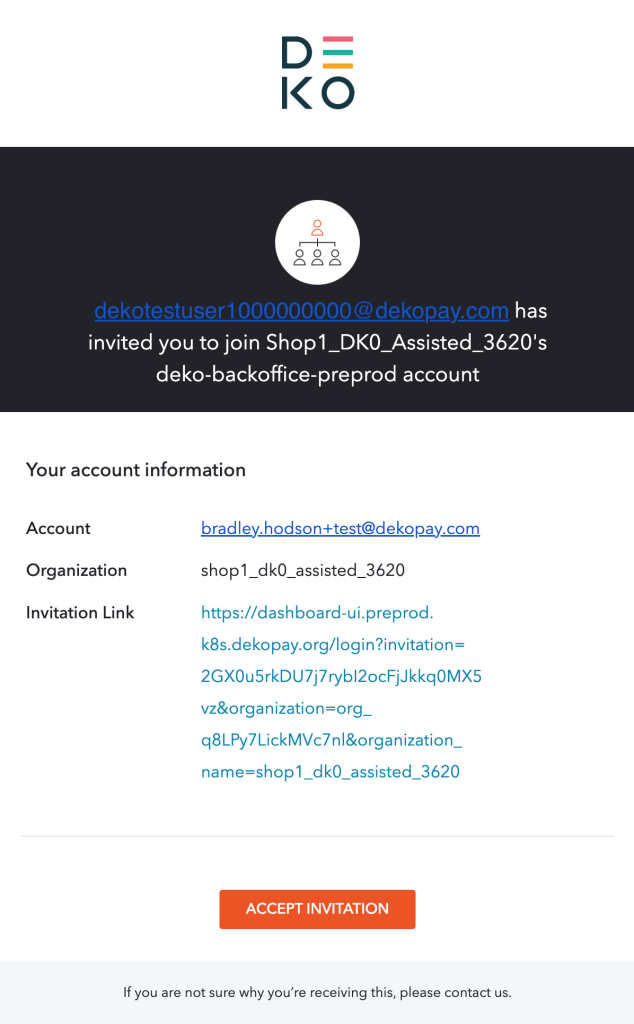
Once the new user has been created, they will receive an email invite (example below). The user will need to accept the invite from the email and set up their account by providing a password and completing their sign-up.
In the User Management section of the Deko Dashboard, you will see the newly created user displayed, and with the Status of Created. This will then update to Active following the users successful account set-up and first login.
Updated over 1 year ago