
Detailed Order View
You can select any order from within the Applications statement view that you wish to explore in more detail, for example to check on the application status, review the basket or customer data, or perform follow up actions.
Simply click on the the eye icon which appears on the far right of the row for each listed application. This will load the detailed order view. This will include the finance offer and term applied for and the status of the loan.
To make it really easy to cross reference with your own systems or e-commerce platform, your proprietary order ID is shown in the top left - this is the reference provided to us via your integration when loading checkout.
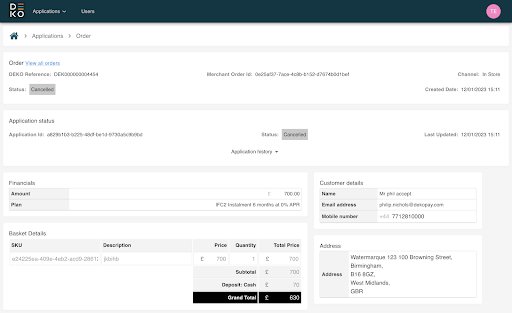
Order Data
Status - the status panel shows the current status of the finance application associated with this order, and the date and time this status was last updated. This is useful if an application is referred or awaiting another customer activity in order to complete.
Status History - the status history dropdown within the status panel provides a simple, at a glance view of the prior statuses the finance application has been in and their date and times. This helps for providing feedback to customers or addressing their queries.
Channel - The channel shows where this application was submitted, in-store, or online.
Financials - the financials panel provides a summary of the purchase amount and the credit product applied for including the term of the loan and the interest rate applicable.
Useful ID - This includes the Correlation ID, Newday Customer Reference, and Newpay Application ID. If you need to contact Deko client services they may ask for some of these IDs if they need to reach out to the lender for more information.
Actions Depending on the status of the application, it may be possible to perform further actions on the displayed order, for example, to process a refund. "
Updated over 1 year ago