
Assigning Roles to Users
User Management and actions like Assigning Roles to Users are only available to Admin usersIf you require access to User Management, please contact your Admin user. If you are unsure who your Admin user is, please contact our Client Services team via [email protected].
Assigning roles to users can be managed from the User Management section in the Deko Dashboard.
It’s possible to assign roles to active users and users which have been recently created.
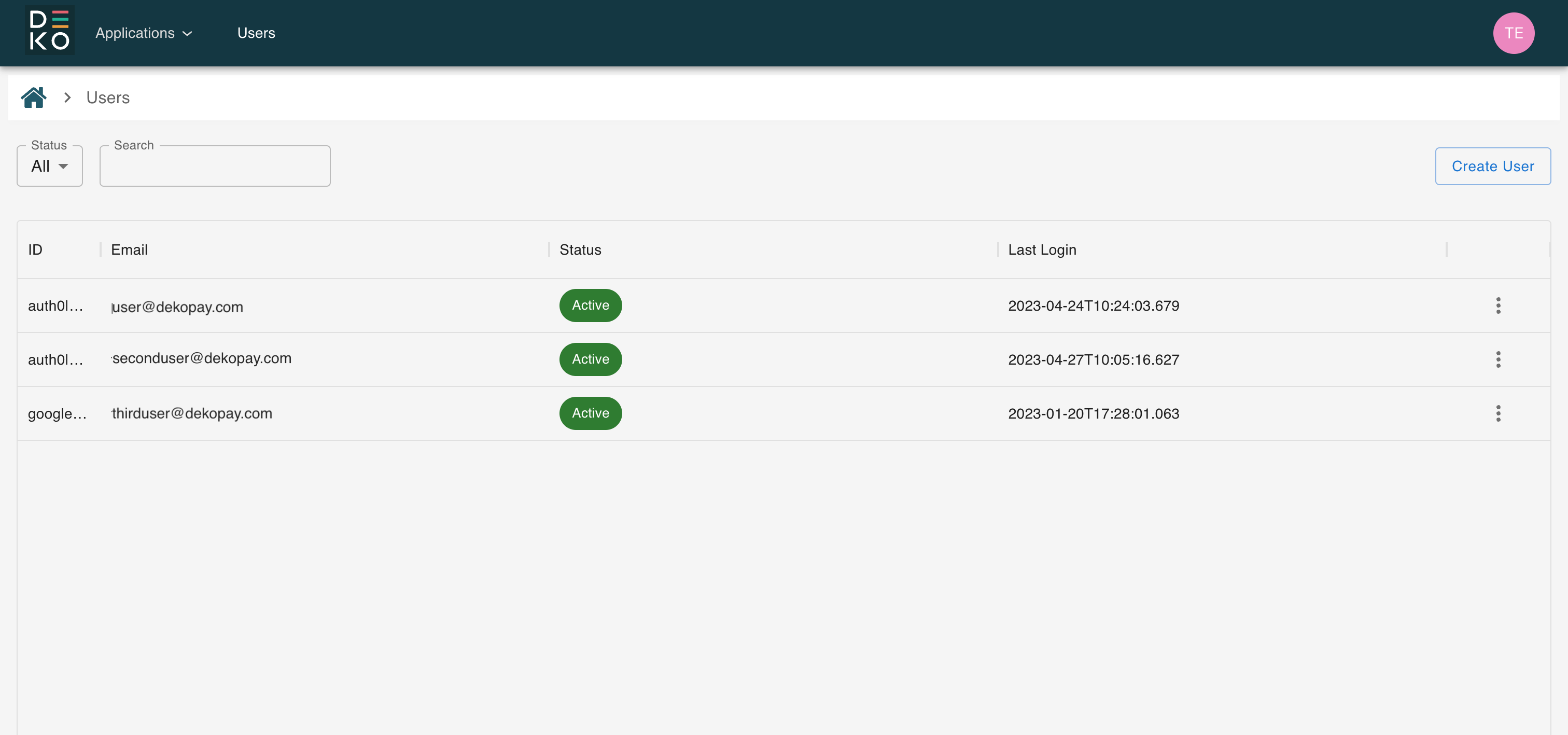
To assign roles to a user, you will need to first select the user from the user management section.
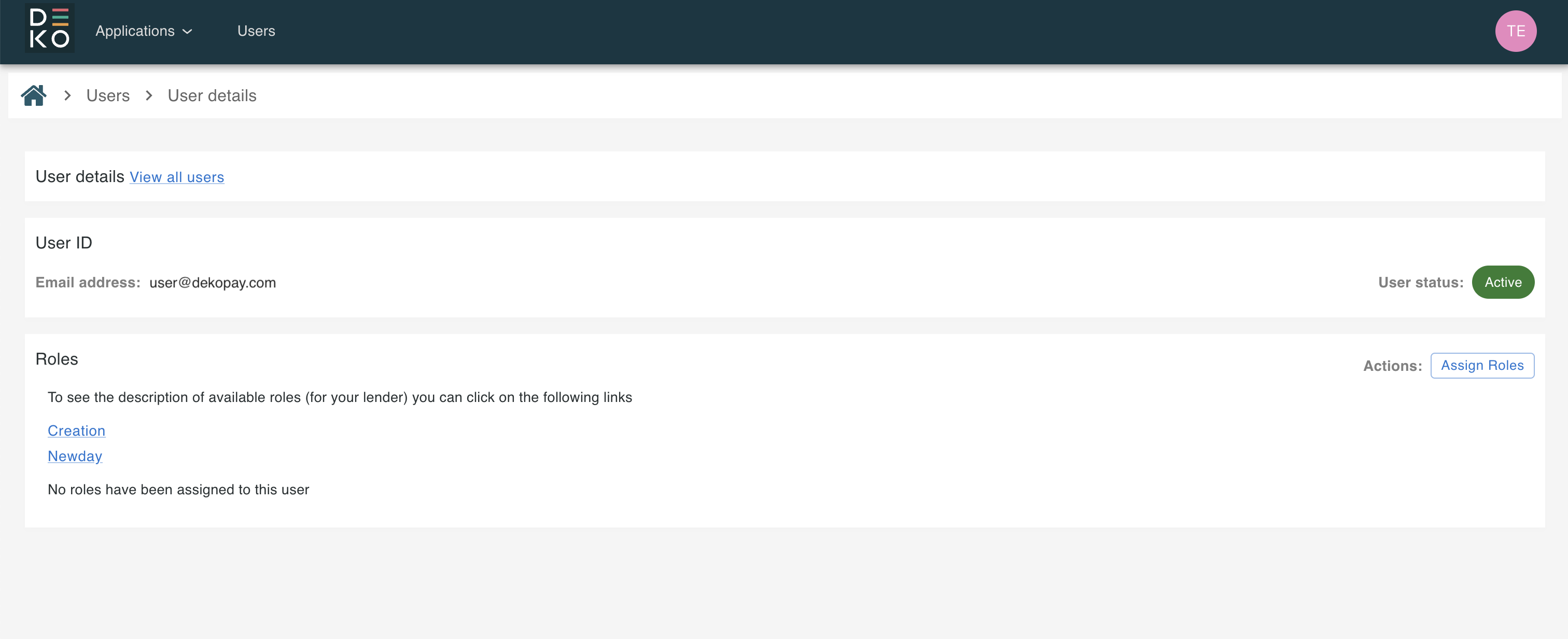
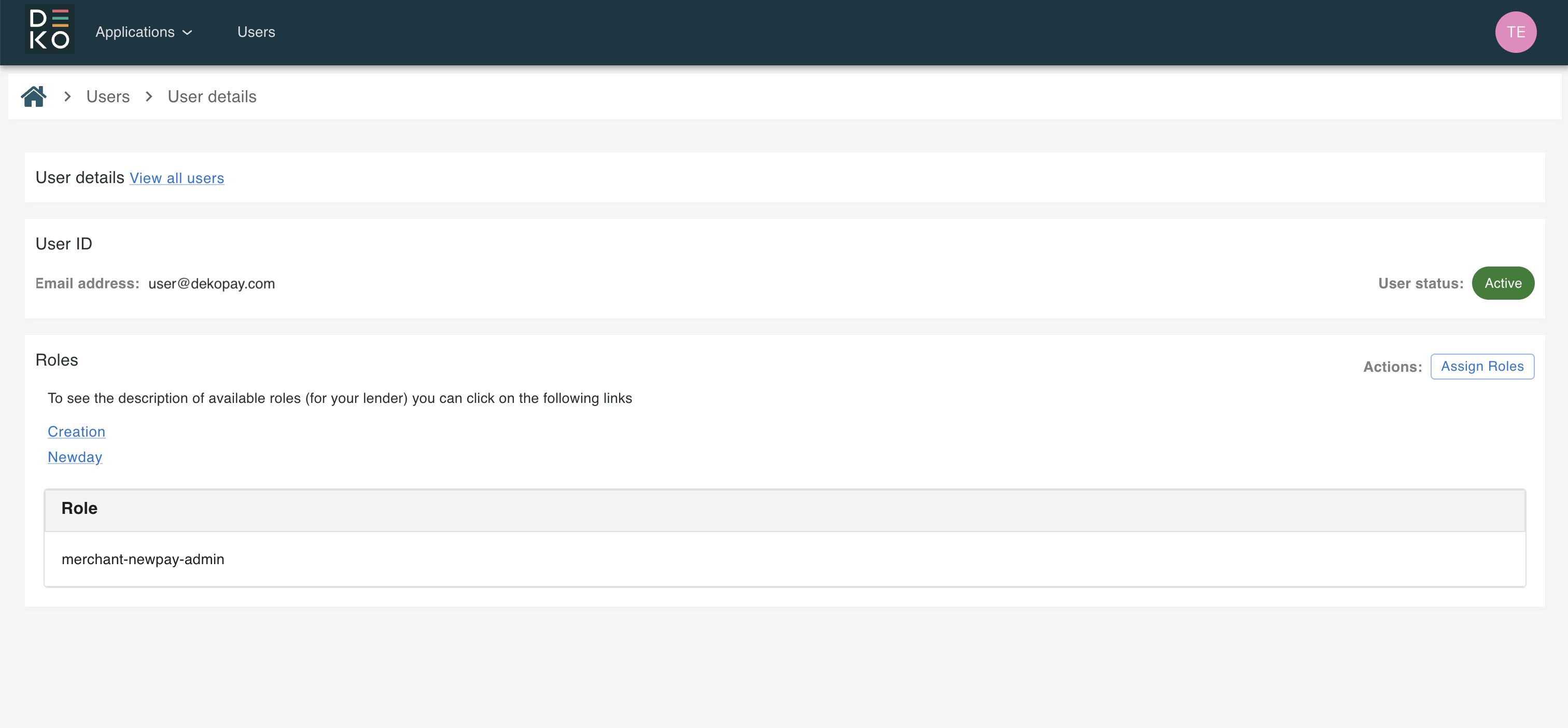
When the manage user screen is displayed, you will be able to view the user's details, as well as which roles that user currently has assigned (if any).
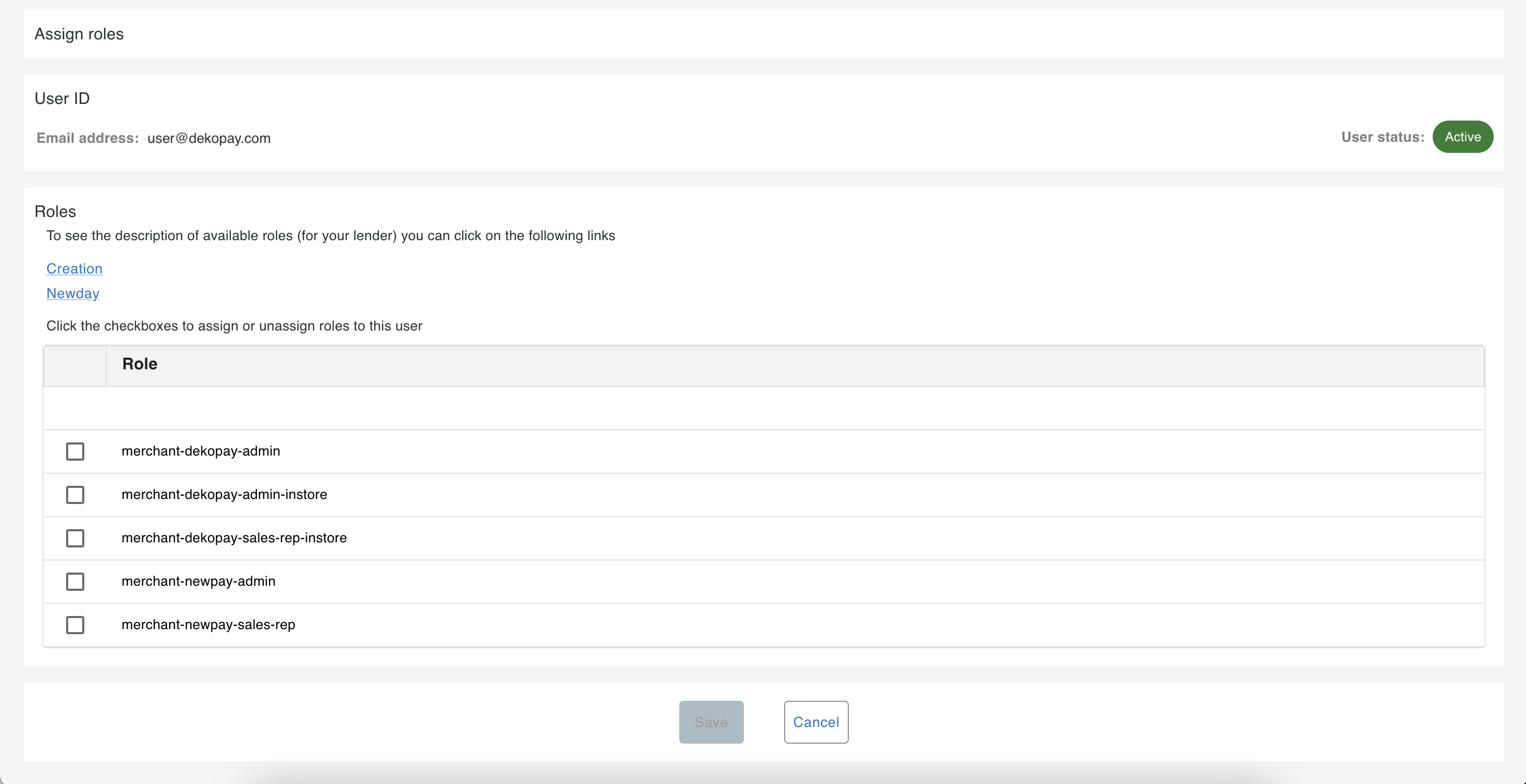
By clicking on the assign role button a table of available predefined roles will be displayed to select from, you will be able to assign one or multiple roles to that user.
To understand the full set of permissions related to the list of pre-defined assignable roles, please see here.
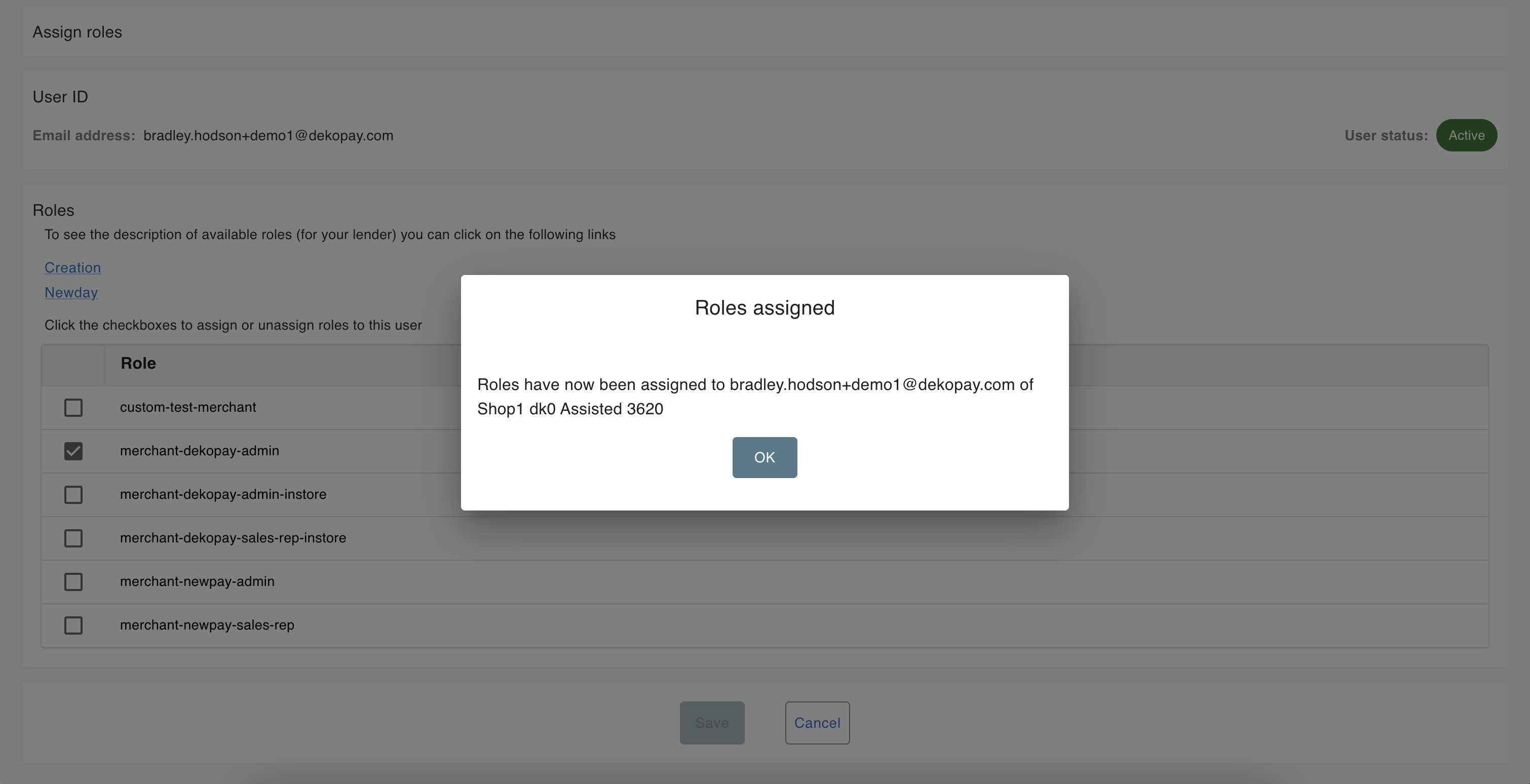
Once the roles have been assigned, a pop-up will be displayed confirming the action.
When the user next refreshes their page (if active on the Dashboard) or logs in to their next session (if inactive on the Dashboard), the updated role and permissions have been applied and they will be updated for the user.
You will then see the assigned roles for that user on the manage user screen.
Updated over 1 year ago